
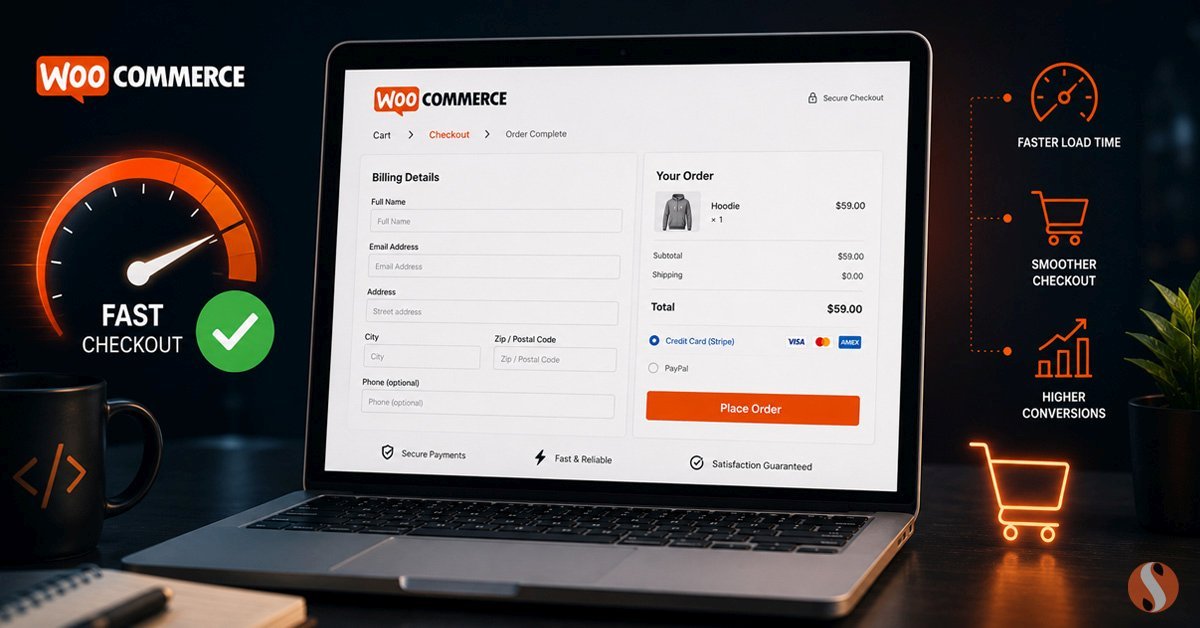
The WooCommerce checkout page is different from every other page on a store. The homepage can be slow and visitors will wait because they are browsing. The product page can load in 3 seconds and most visitors will stay because they are interested. But the checkout page is where a visitor has already decided to buy. Any friction at that point, any delay, any error, any confusion, costs a sale that the store was about to make.
We optimize WooCommerce stores for businesses worldwide and the checkout page is consistently the most impactful page to fix. Not because it is the most visited page, but because the visitors who reach it are the highest-intent visitors on the entire site. Losing them at checkout is the most expensive conversion failure a store can have.
This post covers why WooCommerce checkout pages slow down specifically, what causes the friction that drives abandonment, and the specific fixes that actually work rather than the generic performance advice that applies to every page equally.
Why WooCommerce Checkout Pages Are Slow by Default
Most WooCommerce performance guides treat all pages the same. They recommend caching, image optimization, and a CDN. These improvements matter for product and category pages. They do not directly solve checkout slowdowns because checkout pages cannot be cached the way static pages can. Every checkout page load is a fresh server request that pulls session data, validates cart contents, calculates shipping and tax in real time, and loads payment gateway scripts from external sources.
Understanding what actually executes on a checkout page load is the starting point for fixing it. On an average WooCommerce checkout page, the server is doing several things simultaneously: querying the database for cart item details and pricing, running shipping calculations against the configured carriers or flat rates, applying tax rules based on customer location, loading one or more payment gateway scripts from external CDNs, executing any hooks registered by active plugins, and generating a session-specific nonce for form security.
Each of these is a legitimate requirement. The problem is when plugins add to this list unnecessarily, when database queries are unoptimized, or when payment gateway scripts are loaded poorly. The cumulative effect is a checkout page that takes 4 to 6 seconds to become interactive when it should take under 2.
The Most Common Causes of a Slow WooCommerce Checkout
1. Too Many Payment Gateways Active Simultaneously
Each active payment gateway loads its own JavaScript from an external source. Stripe loads its script. PayPal loads its script. Square loads its script. Each of these is a separate HTTP request to an external server, and each one must complete before the checkout page is fully interactive.
A store with five payment gateways active is loading five external scripts on every checkout page visit, including from visitors who will use only one of them. The fix is to deactivate any payment gateway that is not actively being used by real customers. Two well-configured payment options with fast-loading scripts outperform five options with poorly optimized loading every time.
2. Plugins Loading Assets on Every Page Instead of Just Where They Are Needed
This is one of the most common and most impactful performance problems on WooCommerce stores. Plugins designed to add features to specific pages frequently load their CSS and JavaScript on every page of the site rather than only on the pages where they are actually used. A contact form plugin loading its scripts on the checkout page adds HTTP requests and JavaScript execution time to a page where no contact form exists.
The fix requires either using a plugin that has proper asset enqueueing built in, or using a plugin like Asset CleanUp or WP Rocket's per-page asset exclusion to prevent specific plugin assets from loading on checkout. This optimization alone commonly reduces checkout page weight by 20 to 40 percent on stores with large plugin stacks.
3. Unoptimized Database Queries During Cart Calculation
WooCommerce stores with large product catalogues, complex pricing rules, or significant order history accumulate database overhead that affects checkout response times. Cart calculation queries that take 200 milliseconds on a clean database take 800 milliseconds on one that has not been maintained. Multiply that across all the queries that execute on a checkout page load and the impact on total page response time is significant.
The fix involves both database maintenance and query optimization. Regular cleanup of expired transients, WooCommerce session data, and old order data keeps the database lean. Proper database indexing ensures that product and pricing queries execute efficiently regardless of catalogue size. Our post on why WooCommerce stores slow down covers database optimization in detail as part of the broader performance picture.
4. Shipping Calculation Making External API Calls on Every Update
Live shipping rate plugins calculate real-time rates by making API calls to carrier services like UPS, FedEx, or Royal Mail every time the customer updates their address or changes a cart item. Each of these API calls adds latency to the checkout update cycle. On a slow carrier API connection, a single shipping recalculation can add 1 to 2 seconds of delay every time the customer changes a field.
The fix is to implement transient caching for shipping rates so that repeated calculations for the same destination return cached results rather than making a fresh API call every time. WooCommerce has built-in shipping rate caching that is not always enabled by default. Enabling it and setting an appropriate cache duration eliminates the majority of repeated API call overhead on checkout.
5. The Checkout Page Not Being Excluded From Caching Correctly
This one goes in the opposite direction from most performance advice. Caching plugins that incorrectly cache the checkout page serve a cached version of the page to visitors, which breaks the session-specific functionality that checkout requires. A customer who gets a cached checkout page may see another customer's cart data, encounter broken nonce validation, or face payment processing errors.
Most good caching plugins exclude WooCommerce checkout, cart, and account pages by default. But custom page setups, plugin conflicts, or caching configuration changes can break this exclusion. The fix is to verify that your caching plugin has the WooCommerce pages correctly excluded and that no server-level caching is applied to these URLs.
6. Heavy Checkout Page Templates With Unnecessary Features
Theme checkout templates vary significantly in their performance impact. A checkout template with an animated progress bar, custom field styling that loads web fonts, embedded trust badge graphics, and a live order summary that recalculates on every keystroke adds significant rendering overhead to a page that needs to be fast above almost everything else.
The checkout page does not need to be beautiful. It needs to be fast, clear, and trustworthy. A clean, simple checkout template that loads quickly converts better than a visually impressive one that makes customers wait. This does not mean the checkout needs to look bad. It means that every visual element on the checkout page should be evaluated against whether it improves conversion or just adds weight.
What Actually Causes Checkout Abandonment Beyond Speed
Speed is the most common technical cause of checkout abandonment but it is not the only one. Understanding the full range of friction points that drive customers away from a completed purchase helps prioritize what to fix and in what order.
The WooCommerce Checkout Optimization Checklist
| Optimization | What It Fixes | Impact Level |
|---|---|---|
| Deactivate unused payment gateways | Removes unnecessary external script loads | High |
| Audit and remove plugin assets from checkout | Reduces page weight from irrelevant plugin scripts | High |
| Enable WooCommerce shipping rate caching | Eliminates repeated carrier API calls on field update | High |
| Run database cleanup and optimize tables | Improves cart query response times | Medium to High |
| Verify checkout page is excluded from cache | Prevents broken sessions and nonce errors | Critical if affected |
| Enable guest checkout | Removes account creation barrier | High for new customer conversion |
| Remove unnecessary checkout form fields | Reduces form completion friction | Medium |
| Display shipping costs earlier in the funnel | Reduces surprise cost abandonment at checkout | Medium |
| Use a lightweight checkout template | Reduces rendering overhead on the checkout page | Medium |
| Configure object caching for session data | Reduces database load from session queries | Medium on high-traffic stores |
How to Diagnose Your Checkout Performance Before Fixing It
Applying optimizations without measuring first is how stores end up with changes that do not move the needle. The correct sequence is to measure, identify the specific bottleneck, fix that bottleneck, and then measure again to confirm the improvement before moving to the next fix.
The tools that give the most useful data for checkout-specific performance are different from the ones used for general page speed. Google PageSpeed Insights and Lighthouse measure the initial page load but do not capture the dynamic interactions that make checkout specifically slow: shipping recalculation, coupon application, and payment gateway initialization.
The most useful diagnostic approach is to open the browser DevTools Network tab, load the checkout page in an incognito window, and review the waterfall of requests. This shows exactly which resources are loading, how long each takes, and which external requests are the slowest. Payment gateway scripts and shipping calculation requests that take more than 500 milliseconds are the first targets for optimization.
For server-side performance, Query Monitor is a WordPress plugin that shows exactly which database queries are executing on a given page load, how long each takes, and which plugin or theme is responsible for each query. A checkout page with 80 database queries is not unusual on a plugin-heavy WooCommerce store. The same store properly optimized might run 30. The difference in response time between those two numbers is measurable and meaningful.
When Checkout Optimization Requires Custom Development
Most WooCommerce checkout performance improvements can be made through configuration and plugin management without writing code. But some stores have checkout requirements that cannot be addressed through standard optimization alone.
Stores with complex B2B pricing rules that calculate customer-specific prices on checkout, stores with custom shipping logic that cannot be handled by standard carrier plugins, and stores with checkout flows that require custom field validation or multi-step checkout processes often need custom WooCommerce development to perform correctly.
In these cases, the checkout slowdown is not a configuration problem. It is an architecture problem where the checkout flow was built on top of WooCommerce in ways that create unavoidable overhead. The solution is a rebuild of the checkout logic rather than optimization of what is already there.
Our WooCommerce development service handles both ends of this. Straightforward checkout optimization for stores where configuration changes are the right fix, and custom checkout development for stores where the architecture itself needs to change. The starting point is always a performance audit that identifies which category the store falls into before any work begins.
For context on how checkout performance fits into the broader picture of WooCommerce at scale, our post on what happens when WooCommerce stores reach scale covers the full range of performance and architecture decisions that high-volume stores face.
What Good WooCommerce Checkout Performance Actually Looks Like
A well-optimized WooCommerce checkout page should load to interactive in under 2 seconds on a standard broadband connection. Shipping recalculation when a customer changes their address should complete in under 1 second. Payment gateway initialization should not block the form from being usable while it loads.
These are not aspirational benchmarks. They are the performance levels that well-configured WooCommerce stores on good hosting achieve with the optimizations described in this post applied correctly. Stores significantly outside these numbers have a specific technical reason for it that is diagnosable and fixable.
The business case for checkout optimization is more direct than for any other performance work on a store. A checkout that converts 2 percent better on the same traffic generates the same revenue improvement as a 2 percent increase in traffic, without the marketing cost. For stores processing meaningful order volumes, a 1 to 2 second improvement in checkout page speed consistently produces measurable conversion improvement because it reduces the friction at the exact point where the customer is already committed to buying.
Frequently Asked Questions
Why does my WooCommerce checkout slow down after adding more plugins?
Each plugin added to a WooCommerce store has the potential to add database queries, load additional assets, and register hooks that execute on every page load including checkout. Most individual plugins add a small amount of overhead that is not noticeable in isolation. The problem is cumulative. A store with 30 active plugins where each one adds 3 database queries to the checkout page is running 90 additional queries compared to a store with the same functionality built more efficiently. The fix starts with a plugin audit to identify which plugins are adding overhead to the checkout page specifically, using Query Monitor to see exactly which queries each plugin is responsible for, and then either replacing heavy plugins with lighter alternatives or building the required functionality as custom code that executes efficiently.
Should I use a one-page checkout plugin to improve conversion?
One-page checkout plugins can improve conversion by reducing the number of steps between cart and completed order, but they add their own performance overhead and compatibility risk. A poorly implemented one-page checkout that loads slowly or breaks on certain devices or payment gateways will reduce conversion rather than improve it. Before adding a one-page checkout plugin, the standard checkout should already be performing well. Layering a complex checkout plugin on top of an already slow checkout compounds the problem. The correct sequence is optimize first, then evaluate whether a one-page checkout genuinely improves the conversion rate for your specific customer base.
How does hosting affect WooCommerce checkout performance?
Hosting has a significant impact on checkout performance because checkout pages require server-side processing that cannot be cached away. A shared hosting environment where database resources are constrained will produce slow checkout response times regardless of how well the WooCommerce configuration is optimized. The server needs enough dedicated PHP workers to handle concurrent checkout requests without queuing, enough database resources to execute cart and pricing queries quickly, and ideally object caching through Redis or Memcached to reduce repeated database lookups for session data. Managed WooCommerce hosting or a well-configured cloud server typically produces noticeably faster checkout response times than shared hosting for stores with meaningful order volumes, because the server resources are not shared with other sites and are configured specifically for WooCommerce's requirements.